Save Game Synchronization
One of the best features of gaming on Steam is that your game progress automatically syncs across all your devices through Steam Cloud.
How Steam Cloud Works
Steam Cloud automatically saves your game progress and syncs it across all devices where you play Steam games:
- Your Windows PC
- Your Playnix console
- Your Steam Deck
- Other Steam devices
What Gets Synced
| Data Type | Synced |
|---|---|
| Save Files | ✅ Yes |
| Game Progress | ✅ Yes |
| Settings/Preferences | ✅ Yes |
| Custom Configurations | ✅ Yes |
| Achievements | ✅ Yes |
| Screenshots | ✅ Yes (if enabled) |
| Game Installation | ❌ No |
Using Steam Cloud
No Setup Required!
The beauty of Steam Cloud is that it works automatically:
- You play a game on any device
- Progress is saved locally and to the cloud
- You switch devices and launch the same game
- Progress is restored automatically from the cloud
That's it! No manual configuration needed.
Example: Multi-Device Gaming
Real-world example:
- Play Elden Ring on your PC during lunch break
- Come home and turn on your Playnix
- Launch Elden Ring
- Continue exactly where you left off!
Cloud Save Status
Manual Sync
Steam Cloud syncs automatically, but you can force a sync:
- Exit the game completely
- Wait a few seconds
- The Steam client will sync in the background
- Look for the cloud icon next to the game name
Before Switching Devices
For peace of mind, fully exit the game and wait 10-15 seconds before switching to another device. This ensures all data is synced.
Conflict Resolution
What Happens with Conflicts
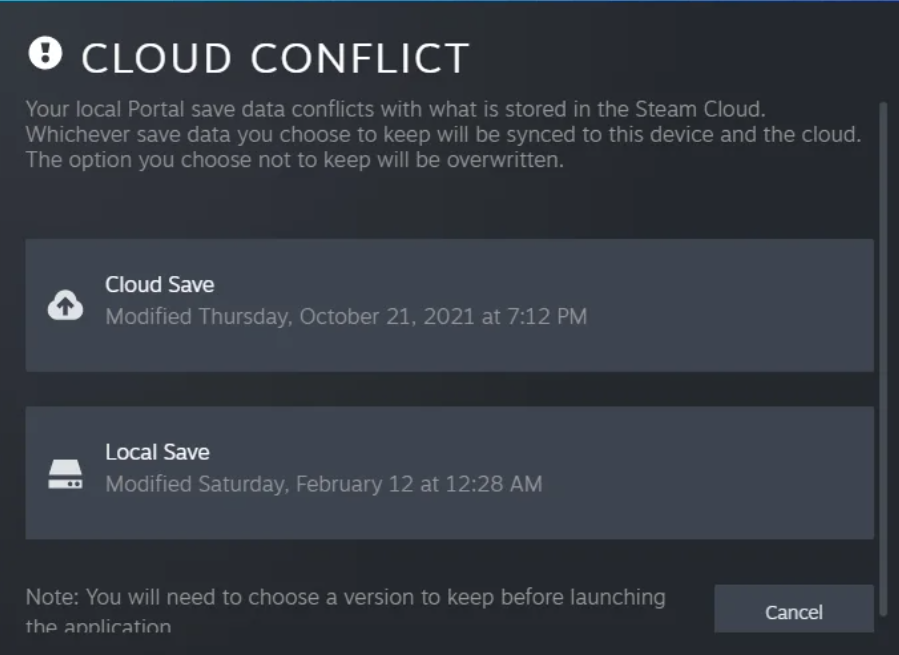
If Steam detects conflicting save data (e.g., you played offline on two devices):
- Steam will prompt you to choose which save to keep:
- Local - Keep the save on this device
- Cloud - Download and use the cloud save
- The selected save becomes the active version
- The other save is discarded
Best Practices to Avoid Conflicts
- Ensure internet connection when playing
- Don't play the same game on multiple devices simultaneously
- Let syncs complete before switching devices
- If playing offline, manually sync when back online
Offline Play
Playing Without Internet
You can still play your games offline:
- Steam enters Offline Mode automatically when connection is lost
- Progress is saved locally
- When reconnected, local saves sync to the cloud
- Normal syncing resumes
Offline Limitations
- Cloud syncing is paused while offline
- Progress won't sync to other devices until reconnected
- Some online features may be unavailable
- Achievements may not register until online
Game-Specific Behavior
Games Without Cloud Saves
Some games don't support Steam Cloud:
- Usually older titles
- Some indie games
- Games with very large save files
For these games:
- Saves remain local to each device
- Manual backup recommended
- Check game forums for save file locations
- Some may support alternative cloud services
Games with Partial Support
Some games partially sync:
- Settings sync but not saves (or vice versa)
- Only certain data syncs
- Check game's Steam Cloud settings
Managing Cloud Data
Viewing Cloud Storage
To see your cloud storage usage:
- Open Steam settings
- Go to Cloud
- View storage used per game
- See total cloud storage (typically several GB)
Clearing Cloud Data
If you need to reset cloud saves:
- Right-click the game
- Select Properties → Local Files
- Click "Delete from Cloud"
- Confirm the action
Permanent Deletion
Deleting cloud saves is permanent. Make local backups if needed!
Disabling Cloud Saves
To turn off cloud saves for a specific game:
- Right-click the game
- Select Properties
- Uncheck "Keep games saves in the Steam Cloud"
Cross-Platform Compatibility
Different Operating Systems
Steam Cloud works across:
- Windows
- macOS (for compatible games)
- Linux (your Playnix)
- Mobile (Steam Link)
Game Availability
Not all games are available on all platforms. Check the store page for platform compatibility.
Troubleshooting
Save Not Syncing
If your saves aren't syncing:
- Check internet connection
- Verify Steam Cloud is enabled:
- For the game
- In Steam settings
- Exit and relaunch Steam
- Check Steam server status at steamstat.us
Wrong Save Loaded
If the wrong save was loaded:
- Exit the game immediately (don't save)
- Check for cloud conflicts
- Choose the correct save manually
- If necessary, restore from local backup
Sync Stuck
If syncing appears stuck:
- Restart Steam completely
- Check your internet speed
- Try toggling Cloud off and on for the game
- Verify game files in Steam
Save Files Lost
If you lost your saves:
- Check Steam Cloud for backed-up versions
- Look in local save directories:
~/.local/share/Steam/userdata/[ID]/[APPID]/
- Check for conflicts and choose correct save
- Contact Steam Support if truly lost
Additional Features
Steam Cloud Screenshots
Enable screenshot syncing:
- Open Steam Settings
- Navigate to In-Game
- Enable "Save uncompressed copy"
- Enable "Upload screenshots to Steam Cloud"
Access screenshots from any device through your Steam Profile.
Steam Workshop
Some games sync Workshop content through Steam Cloud:
- Custom maps
- Mods (when supported)
- Community creations
Check individual games for Workshop sync support.
Privacy & Storage
Your Data
- Saves are encrypted during transmission
- Only you can access your cloud saves
- Valve doesn't access your save data
- Data is stored securely on Steam servers
Storage Limits
- Most users won't reach limits
- Current limit: Several gigabytes per account
- If reached, remove cloud data from old games
- Prioritize active games
Remember: Steam Cloud makes multi-device gaming seamless. Play on your PC, continue on Playnix, and pick up on Steam Deck—all without thinking about it!
For more gaming features, check out Game Optimization and Game Compatibility.