How to Connect Your Console
Setting up your Playnix console is quick and straightforward. Follow these steps to get your console connected and ready to play.
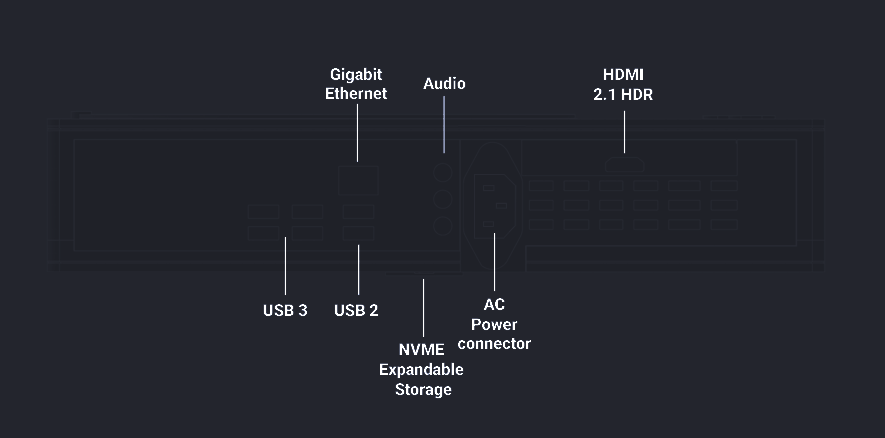
What You'll Need
Before you begin, make sure you have:
- Playnix console
- Power adapter (included)
- HDMI cable (included)
- Television or monitor with HDMI input
- 8bitDo Controller Ultimate 2 (included)
- Internet connection (Wi-Fi or Ethernet cable)
Connection Steps
Step 1: Position Your Console
Place your Playnix console in a well-ventilated area near your TV. Ensure there's adequate airflow around the console to prevent overheating.
Ventilation Important
Keep at least 4 inches (10cm) of clearance on all sides of the console for proper ventilation.
Step 2: Connect the Power Adapter
- Locate the power port on the back of your Playnix console
- Connect the power adapter to the console
- Plug the adapter into a wall outlet
- The console's power indicator light will illuminate
Step 3: Connect the HDMI Cable
- Take the included HDMI cable
- Connect one end to any of the rear HDMI ports on your Playnix console
- Connect the other end to an HDMI input on your television or monitor
- Switch your TV to the corresponding HDMI input
Multiple Display Support
The Playnix console features both HDMI and DisplayPort outputs.
Step 4: Power On Your 8bitDo Controller
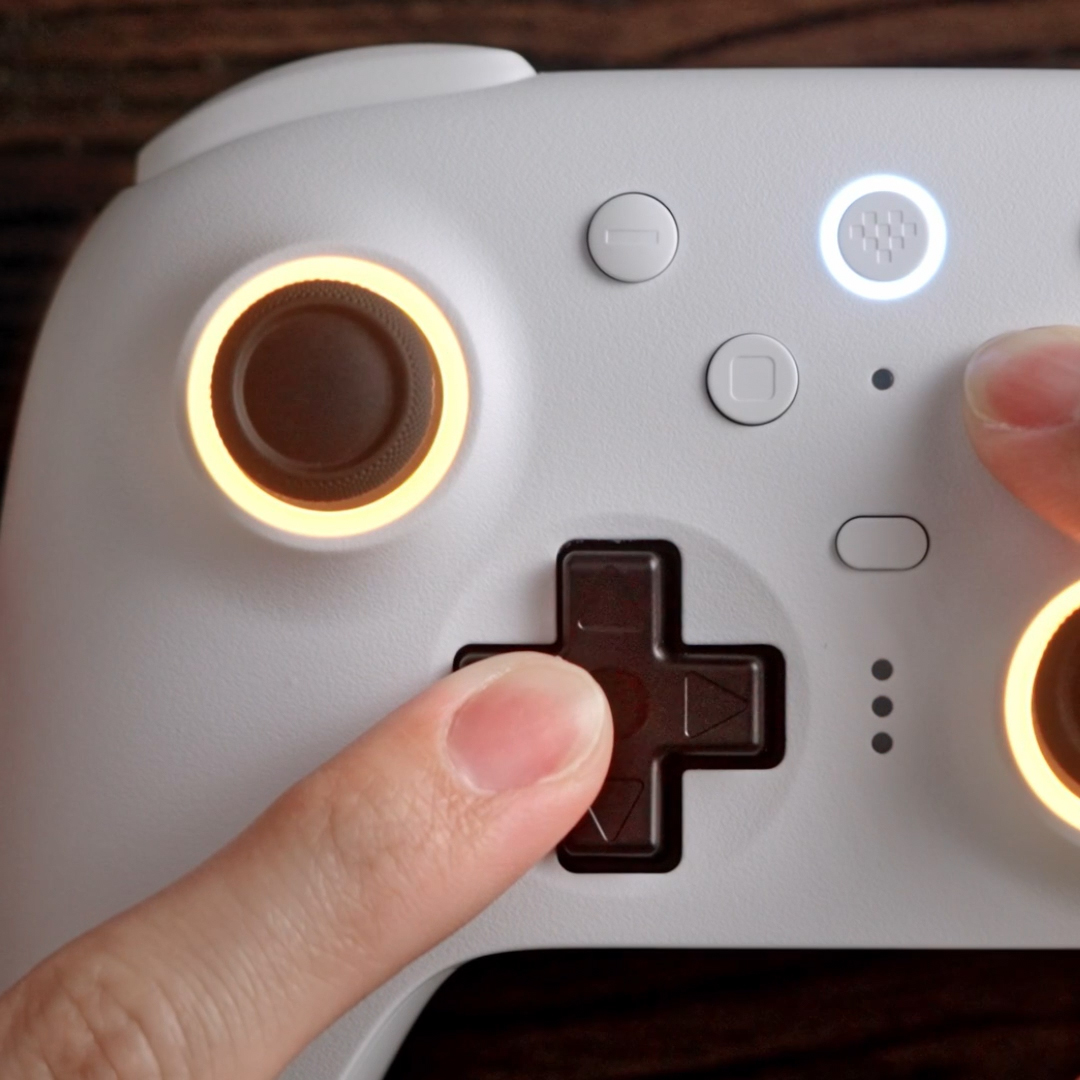
- Press and hold the central button on your 8bitDo Controller Ultimate 2
- The controller will power on and the LED indicator will light up
- It will automatically pair with your Playnix console
Step 5: Power On the Console
Press the power button on the front of your Playnix console. The system will boot up and display the initial setup screen on your TV.
You're Ready!
Your Playnix console is now connected and ready for initial setup. Proceed to the Initial Setup guide to configure your system.
Connection Troubleshooting
Having issues? Try these solutions:
| Problem | Solution |
|---|---|
| No display on TV | Verify HDMI cable is securely connected and TV is on the correct input |
| Controller not responding | Press the central button to wake the controller |
| Console won't power on | Check power adapter connections and try a different outlet |
For more help, visit our Troubleshooting Guide.