Initial Setup
This guide will walk you through the initial configuration of your Playnix console, including setting up your Steam account and configuring the display resolution.
Prerequisites
Before You Begin
Make sure your 8bitDo Controller is powered on (press the central button) before starting the setup process.
Steam Account Requirement
The Playnix console is built on Steam for both its operating system and game library. You'll need a Steam account to use your console.
Not Affiliated with Valve
Playnix is not affiliated with Valve Corporation in any capacity. We use a SteamOS like Linux distribution as our operating system platform.
Don't Have a Steam Account?
No problem! You can create one directly on your Playnix console during the setup process, or visit store.steampowered.com to create one beforehand.
Setup Process
Step 1: Language and Location
When you first power on your console, you'll be prompted to:
- Select your preferred language
- Choose your region/location
- Set your time zone
Use your 8bitDo controller's directional pad to navigate and the A button to confirm selections.
Step 2: Network Connection
Connect your console to the internet using one of these methods:
=== "Wi-Fi" 1. Select your Wi-Fi network from the list 2. Enter your Wi-Fi password using the on-screen keyboard 3. Wait for the connection to establish
=== "Ethernet" 1. Connect an Ethernet cable to the port on the back of your console 2. The console will automatically detect and connect to your network 3. No additional configuration needed
Recommended
For the best gaming experience with minimal latency, we recommend using a wired Ethernet connection when possible.
Step 3: Steam Account Login
Now it's time to connect your Steam account:
- The console will display a QR code and a login prompt
- On your smartphone, open the Steam Mobile App
- Navigate to the QR code scanner in the app
- Scan the QR code displayed on your TV
- Approve the login request on your phone
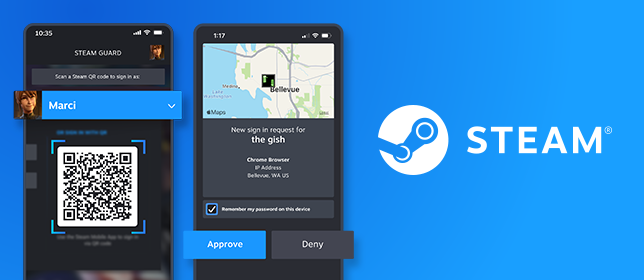
The setup process will take a few seconds to a few minutes while your console syncs with your Steam library and preferences.
Alternative Login Method
If you don't have the Steam Mobile App, you can also log in using your username and password with the on-screen keyboard.
Step 4: Display Resolution Configuration
After logging in, it's important to set the correct display resolution for optimal visual quality:
- Press the central button on your 8bitDo controller
- The Steam side menu will appear
- Navigate to and select "Settings"
- In the Settings menu, scroll down to "Display"
- Uncheck the option "Automatically set resolution"
- A dropdown menu will appear
- Select your TV's native resolution:
- 1920x1080 for Full HD (1080p) displays
- 3840x2160 for 4K (Ultra HD) displays
Important
Setting the correct resolution ensures the best image quality and performance. Using an incorrect resolution may result in scaling issues or reduced visual fidelity.
You're All Set!
Your Playnix console is now fully configured and ready to use. You can now:
- Browse your Steam library
- Download and install games
- Adjust system settings
- Start gaming!
What's Next?
- Explore the 8bitDo Controller features
- Check out Game Optimization Tips for the best performance
- Learn about Console Care to keep your device in top condition
Setup Troubleshooting
| Issue | Solution |
|---|---|
| Can't connect to Wi-Fi | Verify password is correct; try restarting your router |
| Steam login not working | Ensure Steam Mobile App is up to date; try password login |
| Display looks blurry | Double-check your resolution settings match your TV's native resolution |
| Controller not responding | Make sure it's powered on and batteries are charged |
For additional support, visit our FAQ or Troubleshooting Guide.